> ## Documentation Index
> Fetch the complete documentation index at: https://reown-5552f0bb-devin-1759771246-appkit-1-8-9-docs.mintlify.site/llms.txt
> Use this file to discover all available pages before exploring further.
# Push Server
The Push Server sends WalletConnect protocol activity using FCM or APNs to users. The Push Server can be used with our [WalletKit SDK](../walletkit/overview).
Several options exist for setting up the Push Server:
1. Using [Reown Dashboard](#setup-in-walletconnect-cloud) (recommended)
2. Self-host the [Push Server](https://github.com/WalletConnect/push-server)
3. Write your own implementation using the [spec](https://specs.walletconnect.com/2.0/specs/servers/push/spec)
It is recommended that you use Reown Dashboard for simplicity and ease of integration. Typically you only need to self-host if you have concerns about our hosted platform having access to your FCM or APNs server credentials, such as for regulatory reasons. If you want to self-host or implement against the spec, please reach out to [devrel@walletconnect.com](mailto:devrel@walletconnect.com) for assistance.
## Setup in Reown Dashboard
1. Create a Project in the Cloud App. Go to [Reown Dashboard](https://dashboard.reown.com/) and sign up for an account.
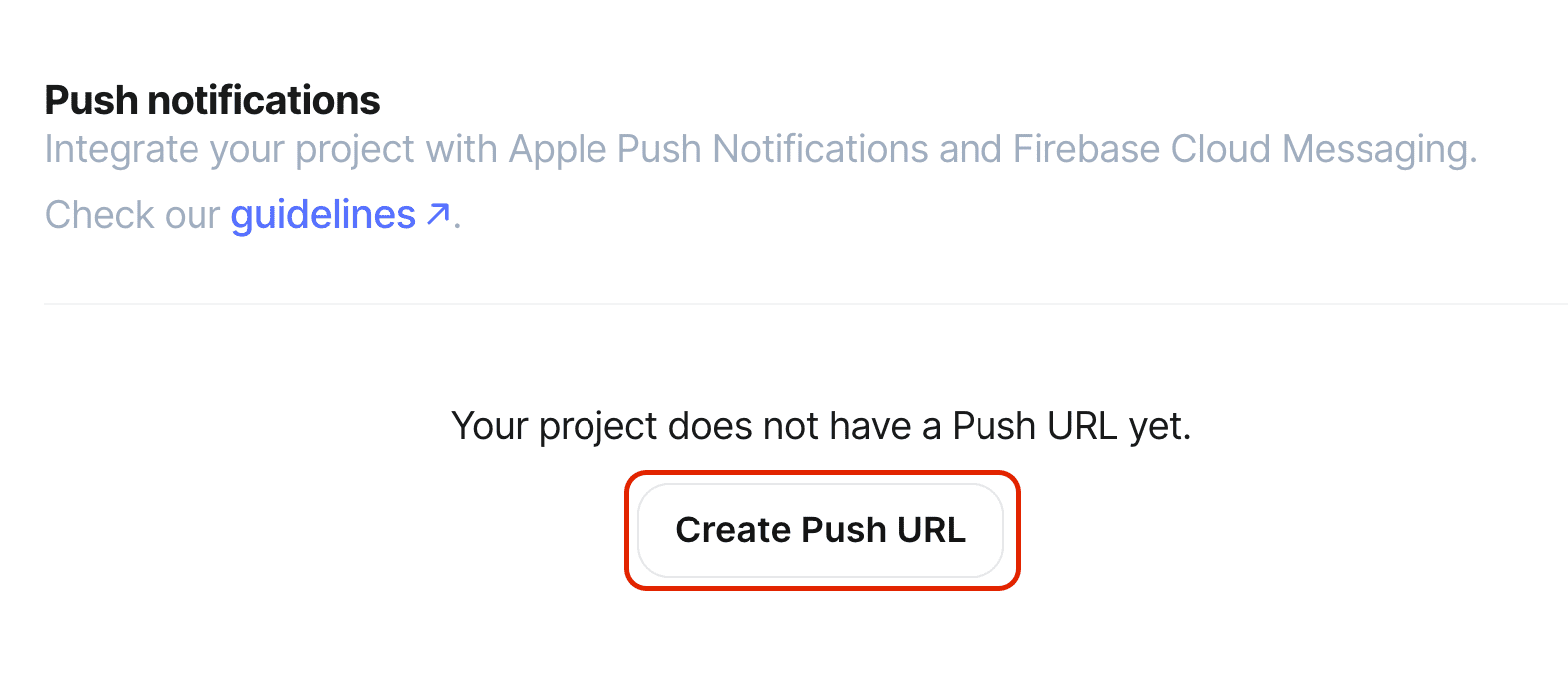
2. To get your project's Push URL, from the Cloud App, go into the settings tab and click on `Create Push URL`.
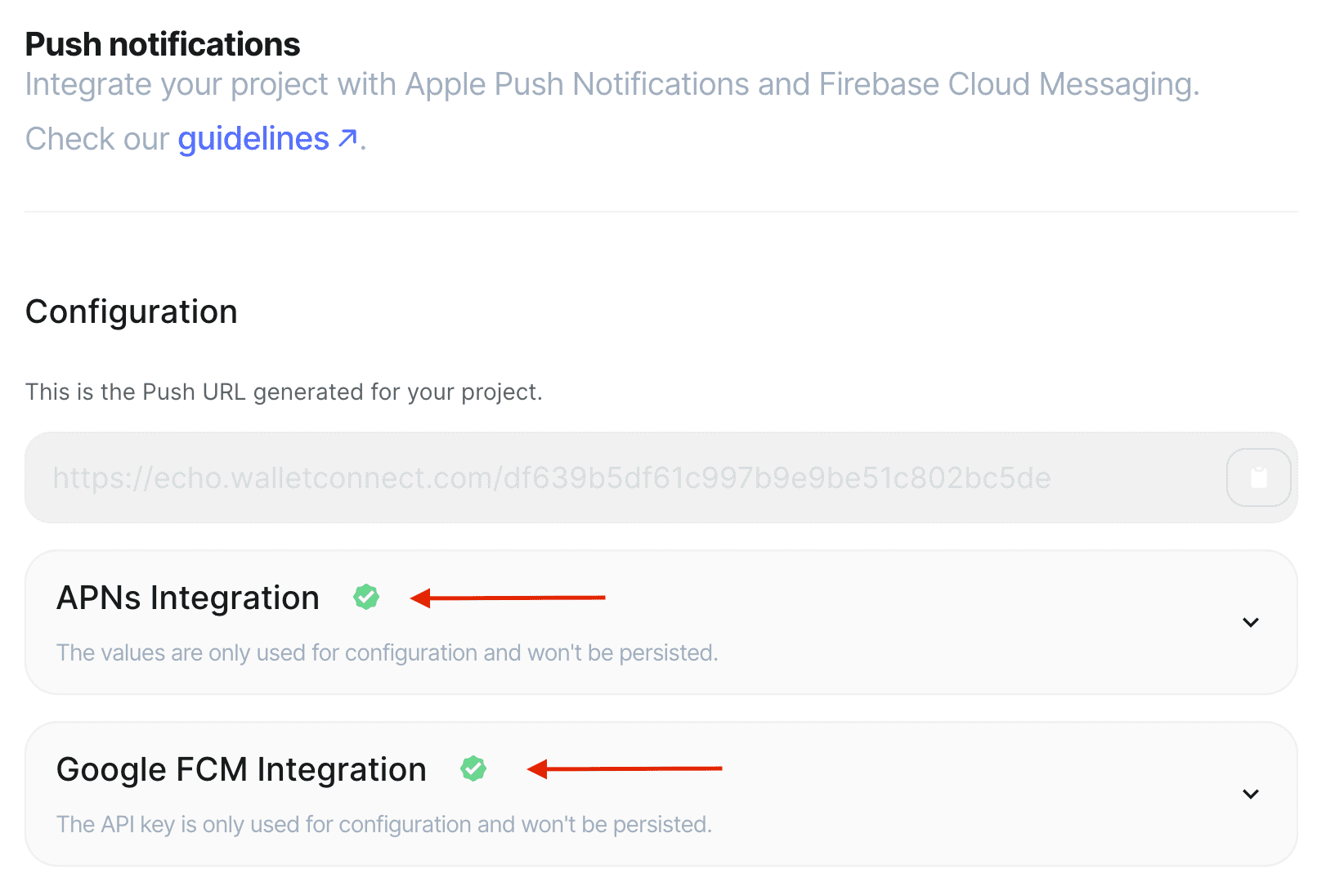
 3. From the same settings tab, you will see the FCM and the APNS settings becomes available to setup. Add your \[FCM]\(#Firebase Cloud Messaging API (FCM v1)) and/or [APNs](#apple-push-notifications-apns) details.
 ### Firebase Cloud Messaging API (FCM v1)
If you already have FCM Legacy enabled and then enable FCM v1, push notifications will automatically be sent with the newer FCM v1 API automatically. No migration of devices/apps is necessary.
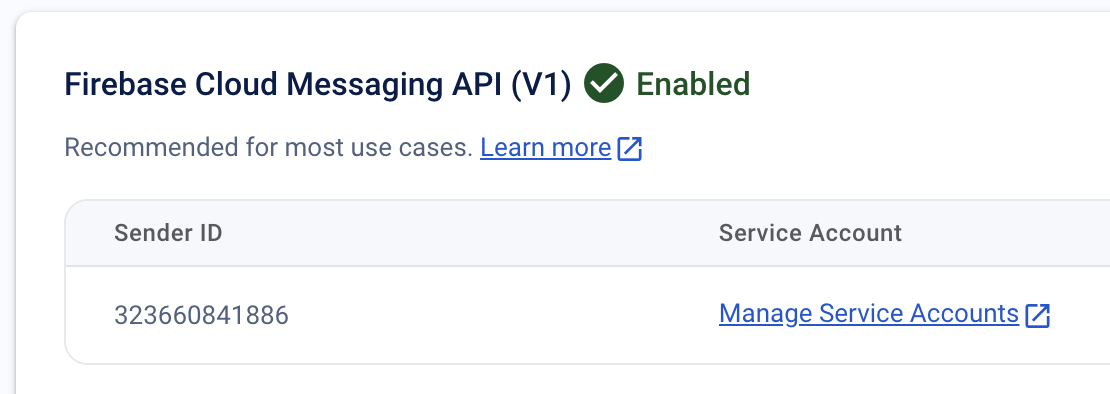
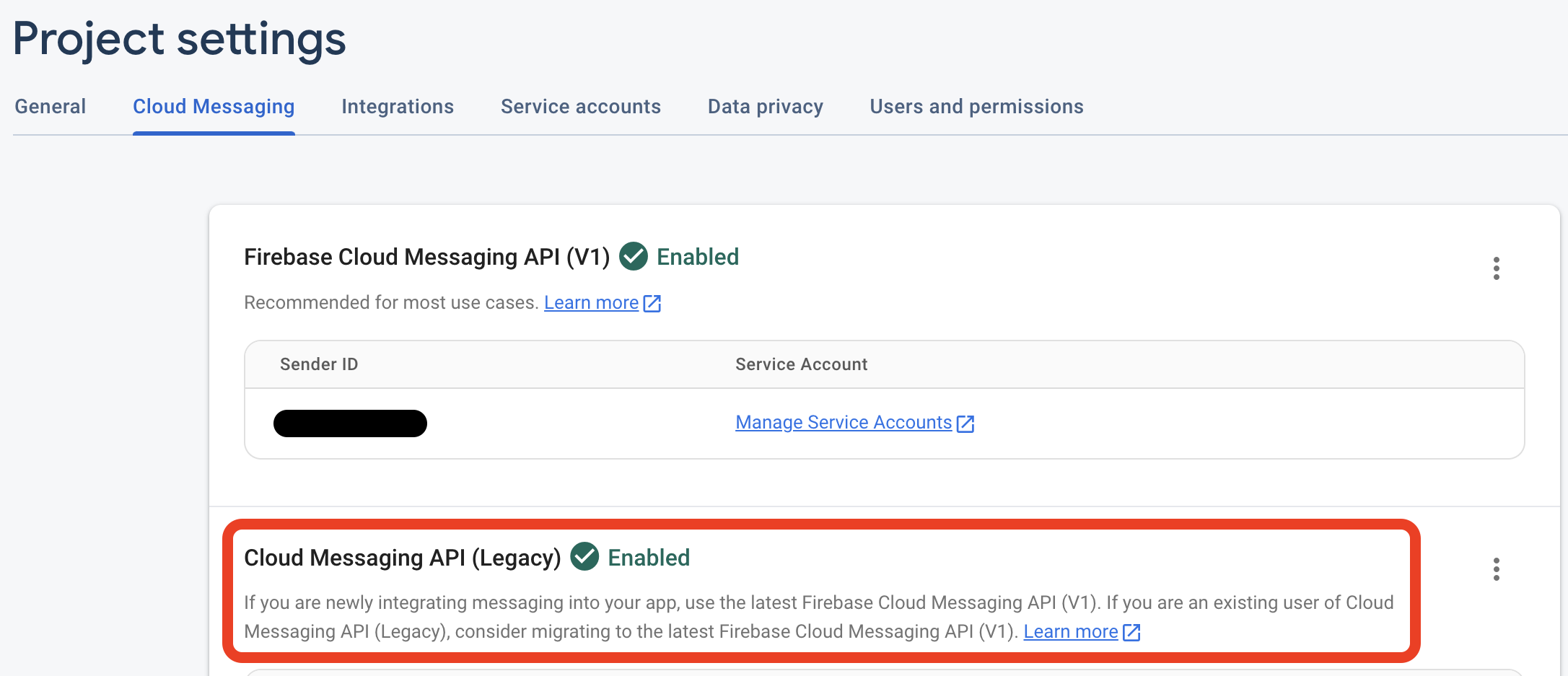
* In your [Firebase](https://console.firebase.google.com) project settings, under *Firebase Cloud Messaging API (V1)*, click the Manage Service Accounts link
### Firebase Cloud Messaging API (FCM v1)
If you already have FCM Legacy enabled and then enable FCM v1, push notifications will automatically be sent with the newer FCM v1 API automatically. No migration of devices/apps is necessary.
* In your [Firebase](https://console.firebase.google.com) project settings, under *Firebase Cloud Messaging API (V1)*, click the Manage Service Accounts link
 * You may use the default `firebase-adminsdk` service account, but we recommend making a new, minimally privileged, service account. Eg a ready-made role from Firebase `Firebase Cloud Messaging API Admin` would only give access to messaging and notifications:
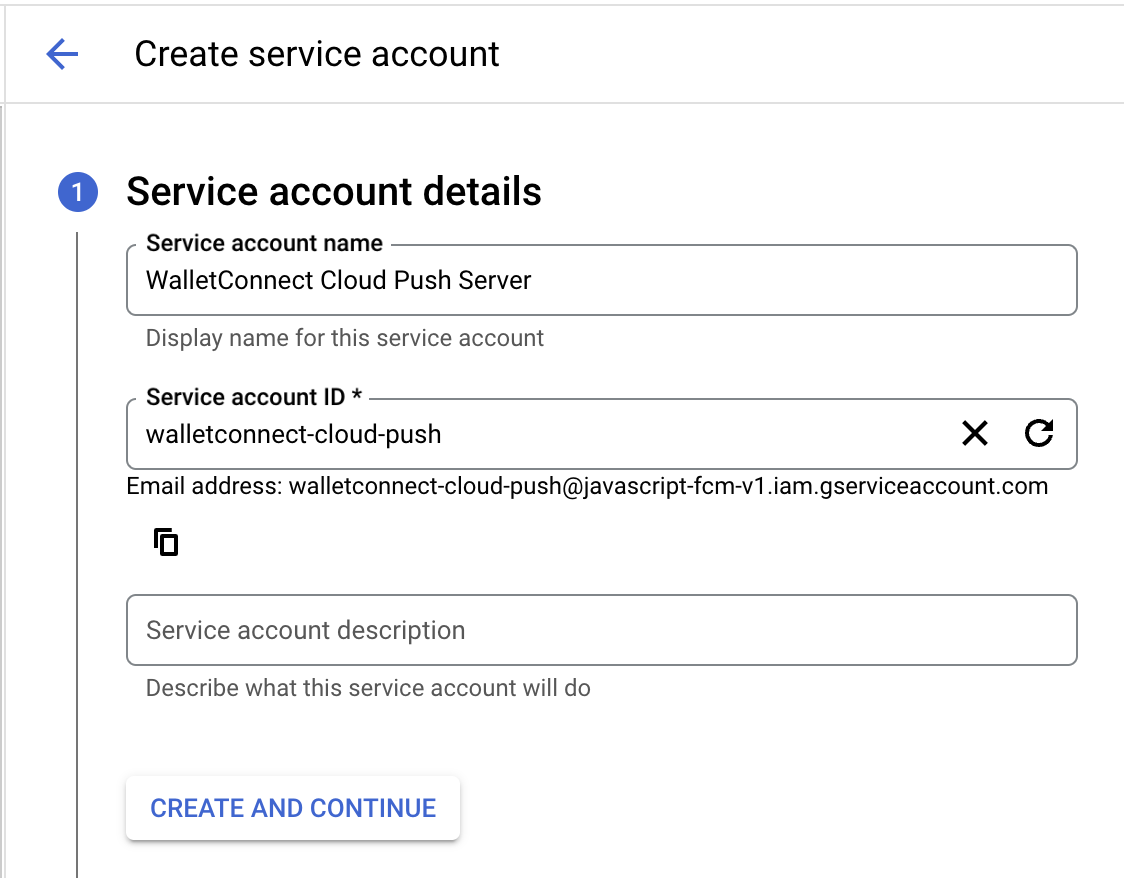
* Click the *Create service account* button
* You may use the default `firebase-adminsdk` service account, but we recommend making a new, minimally privileged, service account. Eg a ready-made role from Firebase `Firebase Cloud Messaging API Admin` would only give access to messaging and notifications:
* Click the *Create service account* button
 * Provide an arbitrary name and ID. E.g. `Reown Dashboard Push Server` and click *Create and Continue*
 * Select the `Firebase Cloud Messaging API Admin` role and click *Continue*
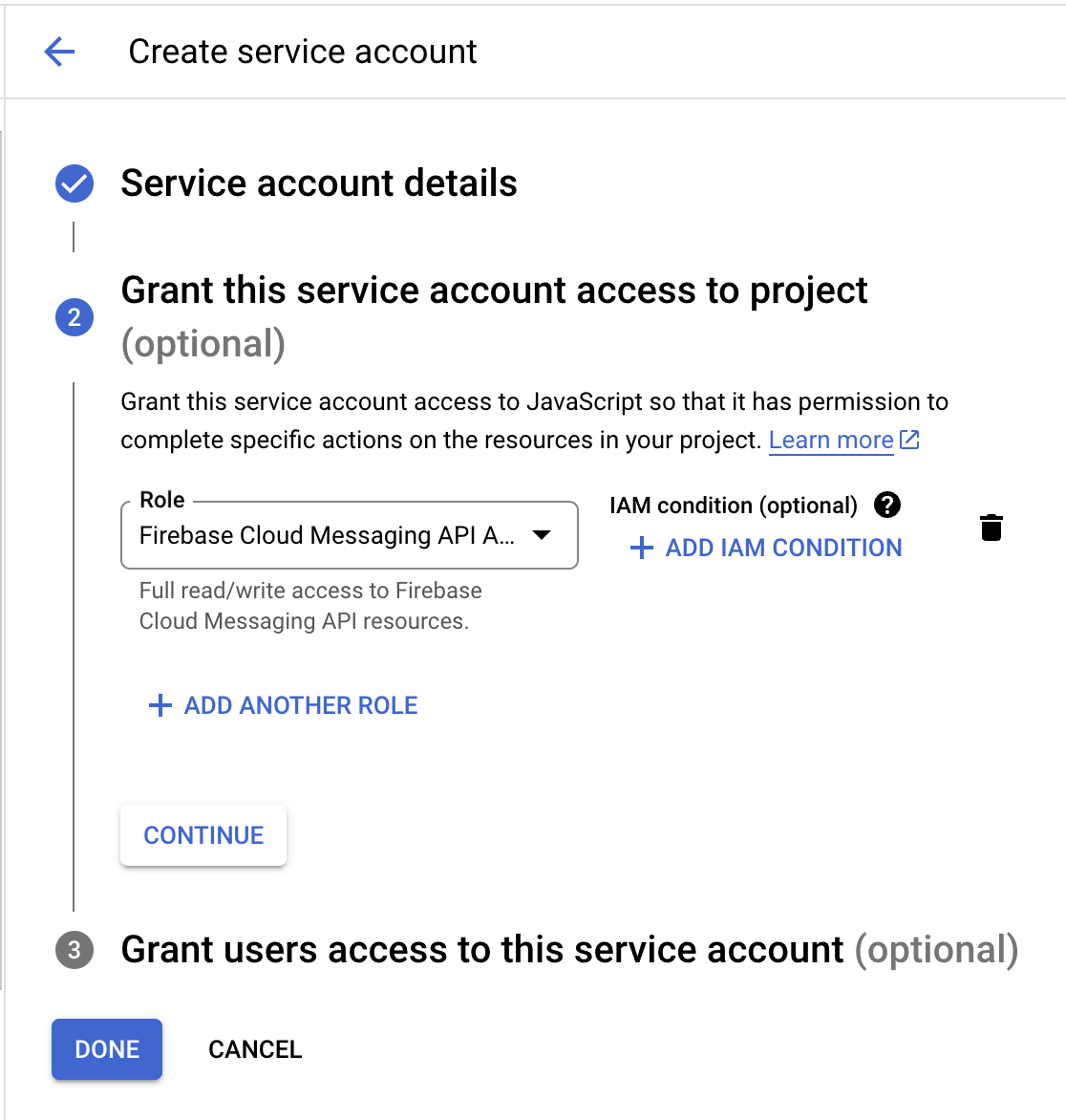 * Click Done
* Next create keys for the service account by clicking on the `⋮` button next to the service account and selecting *Manage keys*
* Click Done
* Next create keys for the service account by clicking on the `⋮` button next to the service account and selecting *Manage keys*
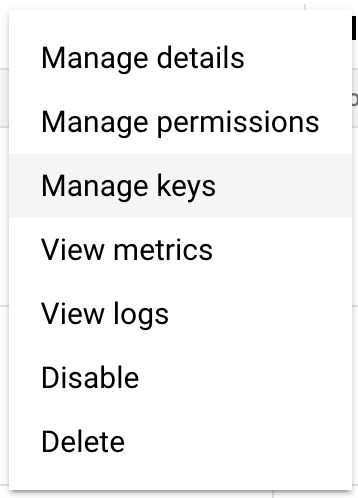 * Click *Add key* -> *Create new key*
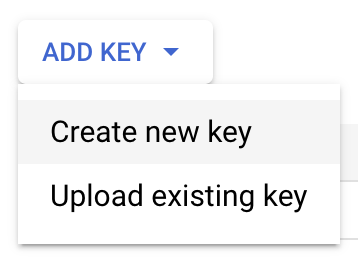 * Select *JSON* and click *Create*
* A `.json` file containing the service account credentials will be automatically downloaded to your computer
* Upload the credentials JSON file to your Cloud project's FCM V1 settings and click *Save*
You should now see a green checkbox indicating that FCM V1 has been enabled! Now any clients that register themselves on the Push Server will receive FCM push notifications for relay messages to that client.
### Cloud Messaging API (FCM Legacy)
FCM Legacy is deprecated and [will be removed June 20, 2024](https://firebase.google.com/docs/cloud-messaging/migrate-v1). We strongly encourage you to setup FCM v1 (above) instead.
* Select *JSON* and click *Create*
* A `.json` file containing the service account credentials will be automatically downloaded to your computer
* Upload the credentials JSON file to your Cloud project's FCM V1 settings and click *Save*
You should now see a green checkbox indicating that FCM V1 has been enabled! Now any clients that register themselves on the Push Server will receive FCM push notifications for relay messages to that client.
### Cloud Messaging API (FCM Legacy)
FCM Legacy is deprecated and [will be removed June 20, 2024](https://firebase.google.com/docs/cloud-messaging/migrate-v1). We strongly encourage you to setup FCM v1 (above) instead.
 When FCM v1 is enabled in Reown Dashboard, it will replace the use of the legacy FCM API. No migration of devices/apps is necessary.
Google's FCM allows you to use send notifications to both Android and Apple devices. At this time, we only support apps using the FCM client API.
* Enable Legacy Cloud Messaging API in the Firebase project settings
When FCM v1 is enabled in Reown Dashboard, it will replace the use of the legacy FCM API. No migration of devices/apps is necessary.
Google's FCM allows you to use send notifications to both Android and Apple devices. At this time, we only support apps using the FCM client API.
* Enable Legacy Cloud Messaging API in the Firebase project settings
 * [Set up Android](https://firebase.google.com/docs/cloud-messaging/android/client)
* [Set up Apple](https://firebase.google.com/docs/cloud-messaging/ios/client)
### Apple Push Notifications (APNs)
Apple recommends using a Token-Based Connection for APNS over a Certificate-Based connection. Please refer to their documentation for instructions on obtaining either.
* [Token-Based Connection](https://developer.apple.com/documentation/usernotifications/setting_up_a_remote_notification_server/establishing_a_token-based_connection_to_apns)
* [Certificate-Based Connection](https://developer.apple.com/documentation/usernotifications/setting_up_a_remote_notification_server/establishing_a_certificate-based_connection_to_apns)
* [Set up Android](https://firebase.google.com/docs/cloud-messaging/android/client)
* [Set up Apple](https://firebase.google.com/docs/cloud-messaging/ios/client)
### Apple Push Notifications (APNs)
Apple recommends using a Token-Based Connection for APNS over a Certificate-Based connection. Please refer to their documentation for instructions on obtaining either.
* [Token-Based Connection](https://developer.apple.com/documentation/usernotifications/setting_up_a_remote_notification_server/establishing_a_token-based_connection_to_apns)
* [Certificate-Based Connection](https://developer.apple.com/documentation/usernotifications/setting_up_a_remote_notification_server/establishing_a_certificate-based_connection_to_apns)